Facebook: How to Delete an App

Today’s PSA: What to do if an App automatically posts for you.

Have you ever had an App automatically post for you? You will know, because it posted one of those “game” results, or something that makes you cringe, and YOU didn’t post it. This happened to me today. I found out because someone “Liked” the post. I was horrified, as I didn’t choose it. People often think they have been hacked when this happens.

What may have happened is that at some point, you clicked on a “fun” game, and gave the app permission to post for you. But in this case, the app turned evil and decided to post for you when you weren’t looking.

Here’s what you do:

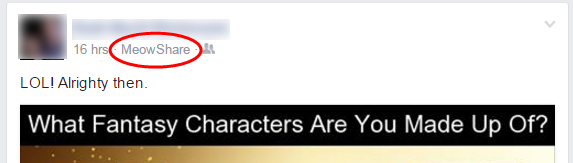
  1. Look next to the time stamp on the post to find the name of the App. In this example, it’s MeowShare.Remove App 1
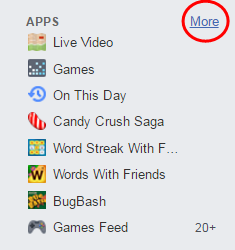
  2. Look on the left side of your Home screen. Among everything else, you’ll find a list of Apps. If you hover over the area, the More link will show up. Click the More link.Remove App 2
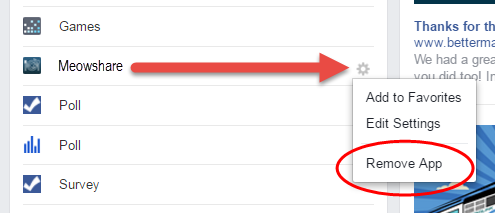
  3. You’ll switch screens to see a full list of Apps that your Facebook account is using. Find the app in the list, and click the gear button at the far right.
  4. Choose Remove App from the drop down menu.Remove App 3

Be sure to look through the list to see if there are any other apps you may want to delete. If you like to play those games, you’ll probably have a lot of them. Remember that each of these apps collects information from you. Remove them to stop that data collection.

How to Block App Invitations on Facebook

Do you have friends who play games via Facebook apps? You know you do if you frequently receive invitations to play those games.

Often, these friends have no idea that the game is sending invitations on their behalf. It’s just part of the “service” the game provides when you sign up for it through Facebook. But, did you know that you can block these invitations without having to block your friend?

Here’s how:

  • Start by clicking the Padlock icon at the top left corner of your screen.
  • Then, click the See More Settings link.

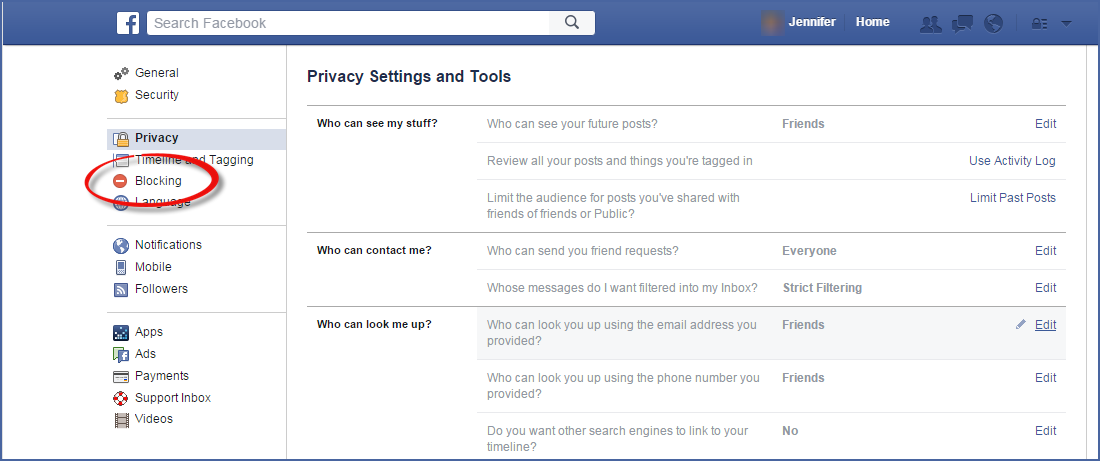
  • That will bring up the Privacy Settings and Tools screen. From here, you want to click the Blocking option at the left side of the screen.

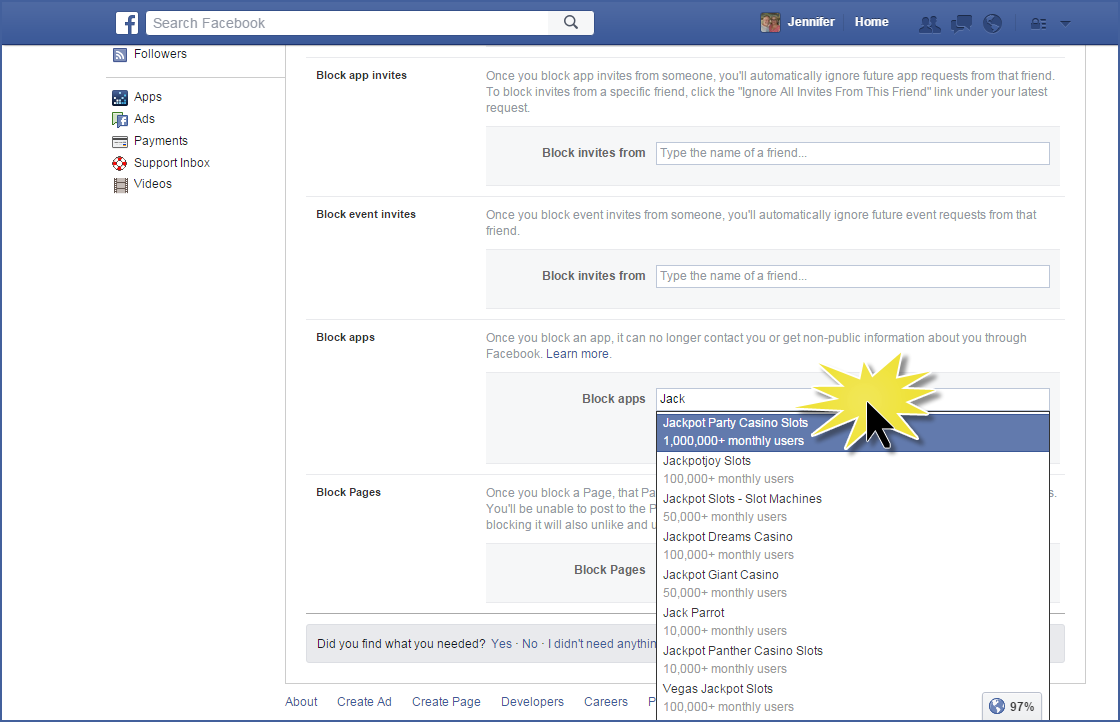
  • Now you’ll see the Manage Blocking screen. Scroll down the window until you can see the Block Apps section.
  • Click in the Block apps box and begin typing the name of the app or game.
    In my case, my friend invited me to play Jackpot Party Casino Slots. So, I started typing, and the name popped up.
  • Click to select the name from the list.

Blocking Settings

That will add the app to the block list. You should not receive any more invitations from this app, even if your friend sends them.

There is no Save option on this screen. So, once you see the app on the block list, just click your Home button at the top to continue your Facebook browsing!

Finished App Block